

Installation
Set up Umpteenth on one host with Docker Compose, from a fresh clone to a signed-in instance with a working model.
The single-node setup keeps its SQLite database and its files in ./data next to the compose file, so you need no database server.
For several replicas behind a load balancer, see High availability.
Requirements
Section titled “Requirements”- A host with Docker Engine on amd64 (x86-64) or arm64. Podman works with three changes, listed under Podman.
- An OpenID Connect identity provider, such as Pocket ID, Authentik, Keycloak or Zitadel, or GitHub accounts to sign in with.
- An Anthropic API key, or an OpenAI-compatible API such as OpenAI, OpenRouter, Ollama or LM Studio.
- Room for the sandboxes: by default a run’s sandbox may use 1 CPU and 1024 MB of memory, and up to three runs execute at once.
Set up
Section titled “Set up”-
Clone the repository and build the two images.
The project doesn’t publish images yet, so you build the app image and the default sandbox image yourself.
Terminal window git clone https://github.com/stonith404/umpteenth.gitTerminal window cd umpteenthTerminal window docker build -f docker/Dockerfile -t ghcr.io/stonith404/umpteenth:latest .Terminal window docker build -t ghcr.io/stonith404/umpteenth-sandbox:latest docker/sandboxKeep both tags as they are:
docker-compose.ymlstarts the app image by its tag, and Umpteenth creates sandboxes from the sandbox image’s tag. Without the sandbox image in your engine, Umpteenth tries to pull it from the registry, the pull fails, and so does every run. -
Create
config.ymlnext todocker-compose.ymland fill in theappsection.Terminal window cp config.example.yml config.ymlconfig.yml app:url: https://umpteenth.example.comencryption_key: "<output of openssl rand -base64 32>"app.urlis the URL you open Umpteenth at, and your sign-in provider sends you back to an address below it.The encryption key needs at least 16 bytes. Umpteenth signs sessions with it and encrypts your secrets, model API keys and MCP logins in the database. Keep a copy with your backups: under a different key, Umpteenth can’t decrypt what it stored, and everyone has to sign in again.
docker-compose.ymlmounts the file into the container at/app/config.yml, where Umpteenth reads it on start. An environment variable named after an option’s path, such asAPP_URLforapp.url, sets the same option and wins over the file. Configuration lists every option. -
Set up sign-in.
Umpteenth has no passwords of its own, so you sign in through an OpenID Connect identity provider or with a GitHub account. If you run an identity provider, such as Authentik, Keycloak or Zitadel, use it. Without one, install Pocket ID, a small OpenID Connect provider that runs in Docker next to Umpteenth, or sign in with GitHub if you’d rather not host an identity provider.
Follow OpenID Connect or GitHub on the Sign-in page, which end with a block for the provider under
auth.providersinconfig.yml. Keep only your own providers there, since the examplegithubprovider in the copied file has no client secret and stops Umpteenth at start.Everyone who gets through a provider joins Umpteenth’s one workspace, with every job and secret in it, so limit who may sign in as Sign-in describes. The first person to sign in owns the workspace and everyone after joins as a member, and Workspaces shows how to change roles or give each team a workspace of its own.
-
Start Umpteenth.
Terminal window docker compose up -ddocker compose pslists the container ashealthyonce the server answers its health check. The container’s log showsUmpteenth is startingand thenServer listening:Terminal window docker compose logs umpteenthError: app.encryption_key (APP_ENCRYPTION_KEY) is requiredin the log means Umpteenth found no key inconfig.yml. AFailed to prepare the sandbox backendline that mentions the default sandbox image means your engine lacks the image from step 1. -
Open
app.urlin your browser and click your provider’s button, such as Sign in with Pocket ID or Sign in with GitHub.The Dashboard you land on shows Nothing to show yet until your first job runs, and as the first to sign in, you own the workspace. Umpteenth has no password reset flow because it has no passwords, so you sort out accounts in your identity provider or on GitHub. If sign-in fails, the login page shows the reason, and Troubleshooting has a fix for each one.
Connect a model
Section titled “Connect a model”On first start, Umpteenth creates a provider named Anthropic with the current Claude models and their prices. It sets Claude Opus 5.5 as the default agent model and Claude Haiku 4.5 as the utility model, which compiles jobs and verifies results. The provider starts without an API key.
-
Open Settings → Providers & models. The Anthropic row shows None in the API key column.
-
Open the row’s ⋯ menu, choose Edit, paste your key into API key and click Save.
-
Click Test on the same row, pick a model and click Send test prompt. Replied in with the model’s answer means the key works, and Failed after shows the provider’s error.
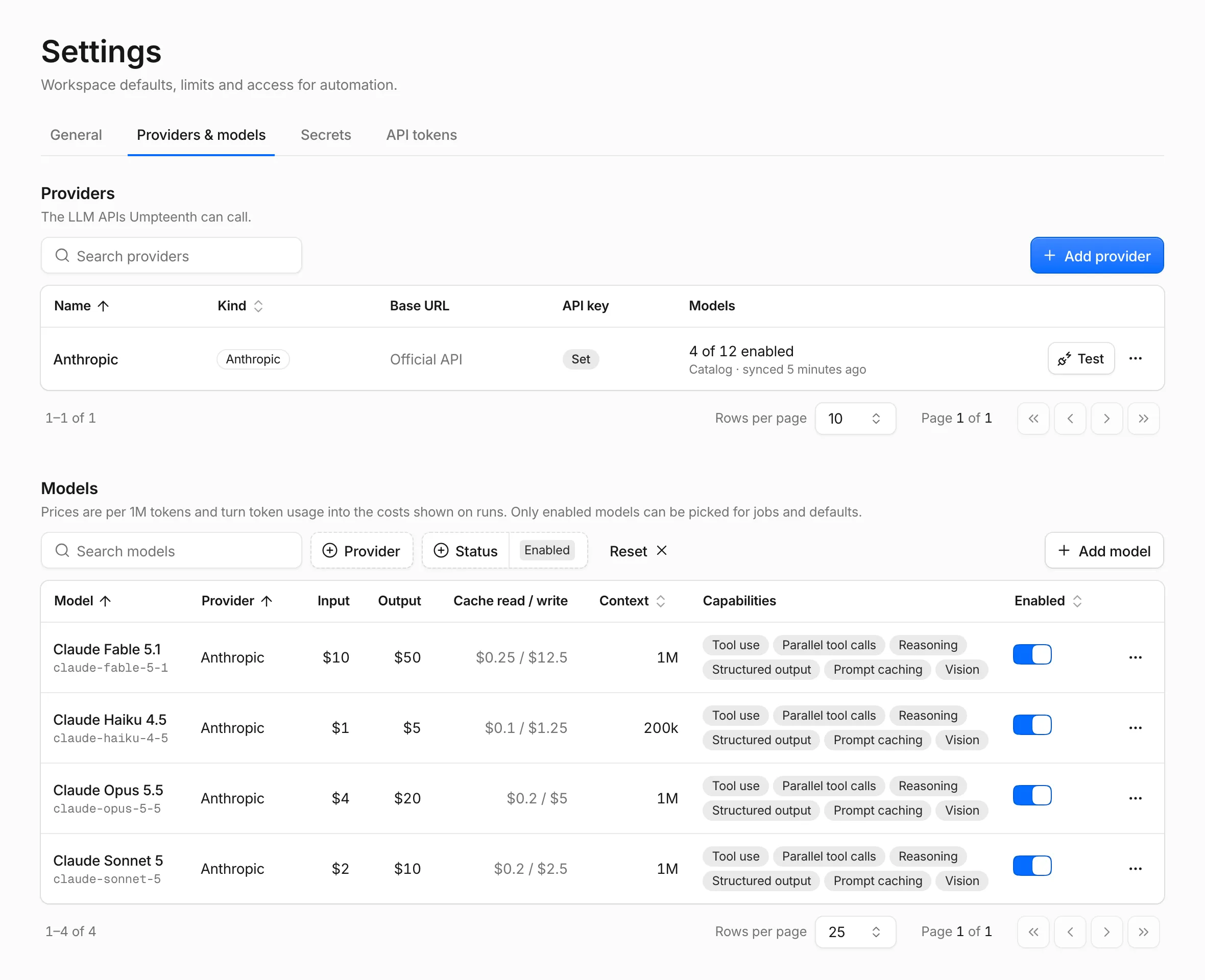
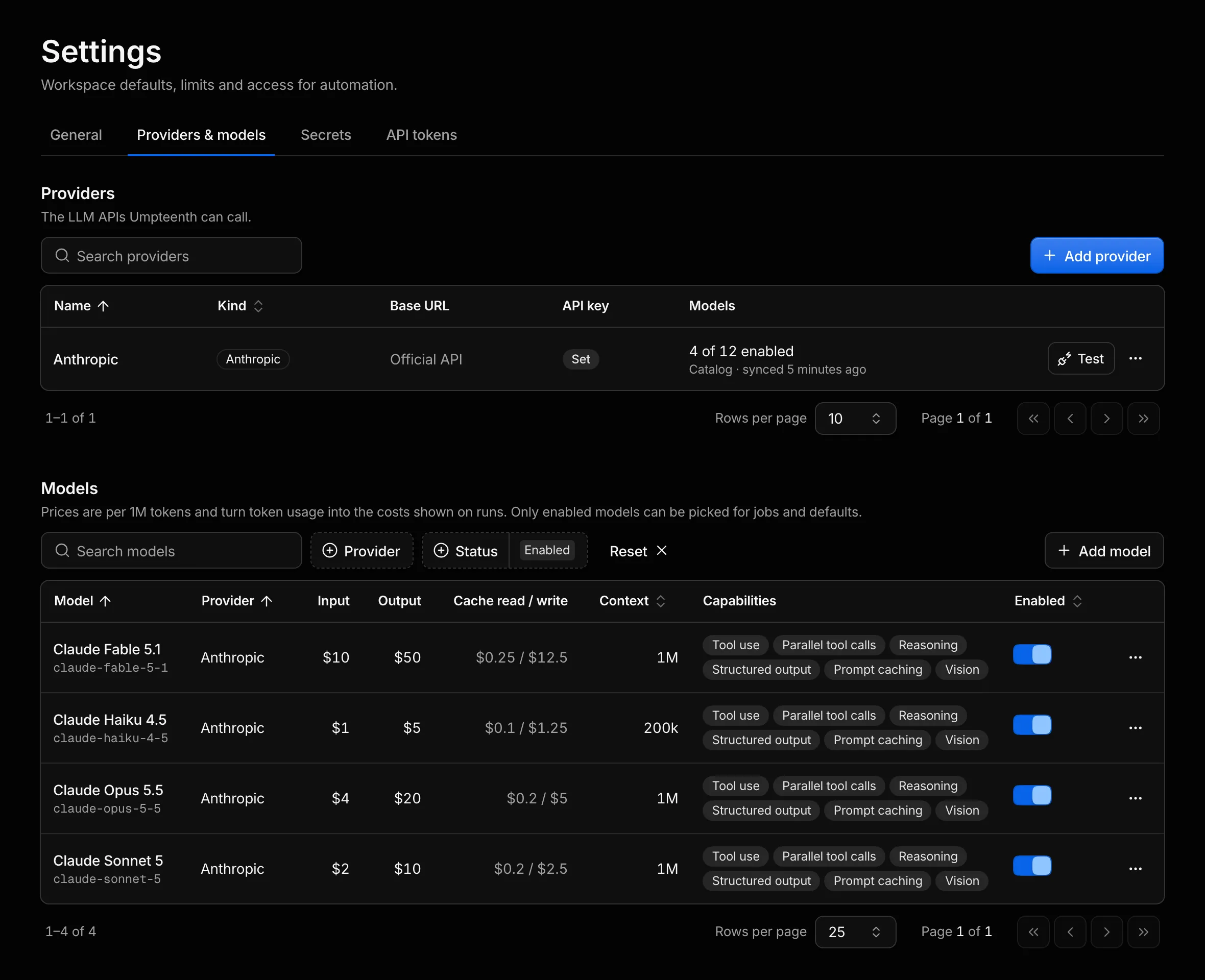
To skip the paste, set providers.anthropic_api_key in config.yml before the first start.
Umpteenth reads it only while it creates the Anthropic provider, so later changes to it have no effect.
For another provider, click Add provider, choose OpenAI-compatible and a preset, then pick your models for Agent and Utility under Settings → General → Default models. Models and costs explains the model roles and how to connect a local server such as Ollama.
Check the sandbox backend
Section titled “Check the sandbox backend”Open Settings → General and find the Sandbox backend card, which shows how this instance runs sandboxes:
| Field | Shows |
|---|---|
| Adapter | docker with the engine version, or docker podman with the Podman version |
| Isolation | container, or gvisor when sandboxes run under gVisor |
| Architecture | amd64 or arm64 |
| Egress firewall | Private networks blocked when internet sandboxes can’t reach your LAN, the host or cloud metadata, Not enforced when they can, Turned off when sandbox.egress_filter is off |
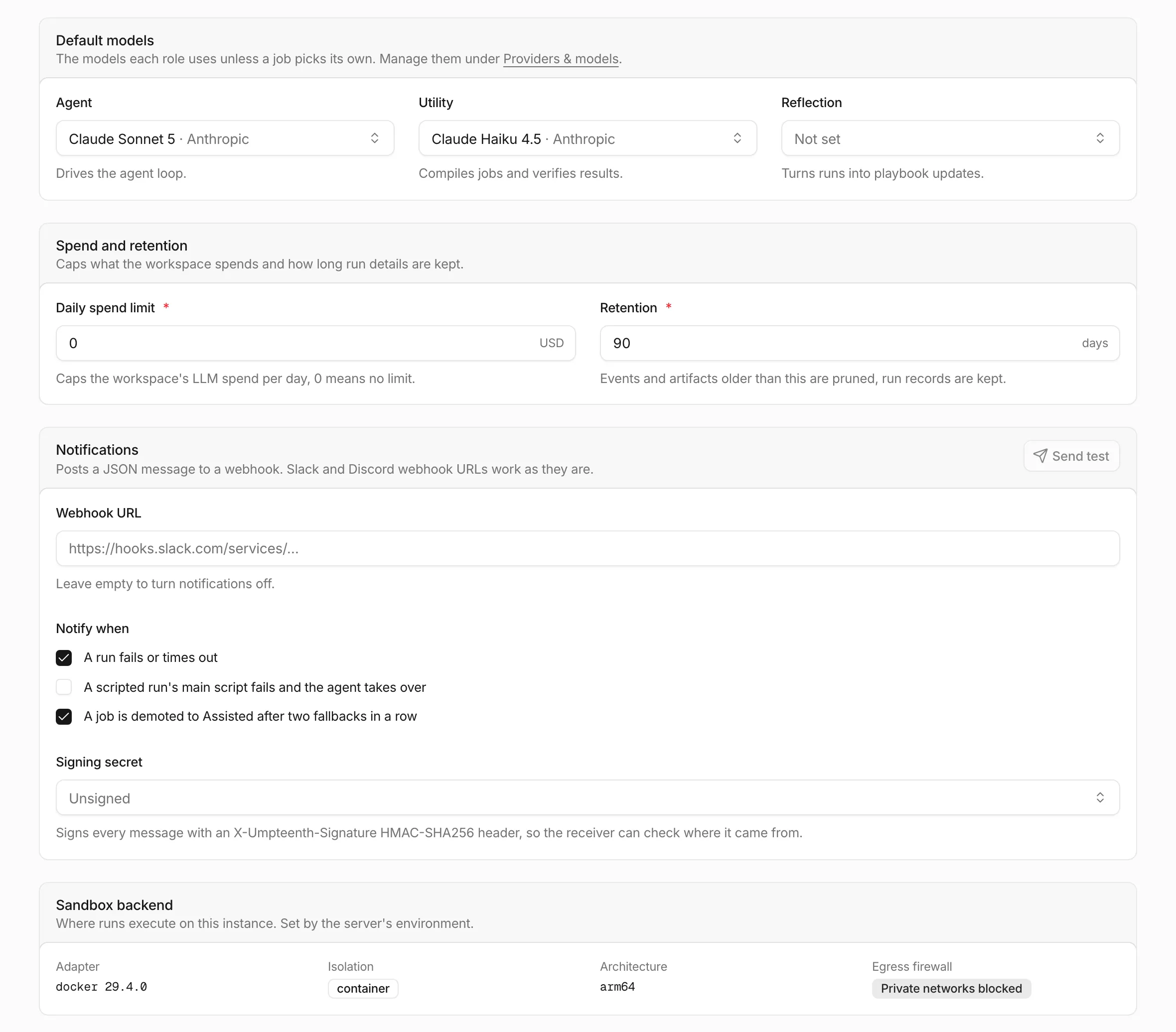
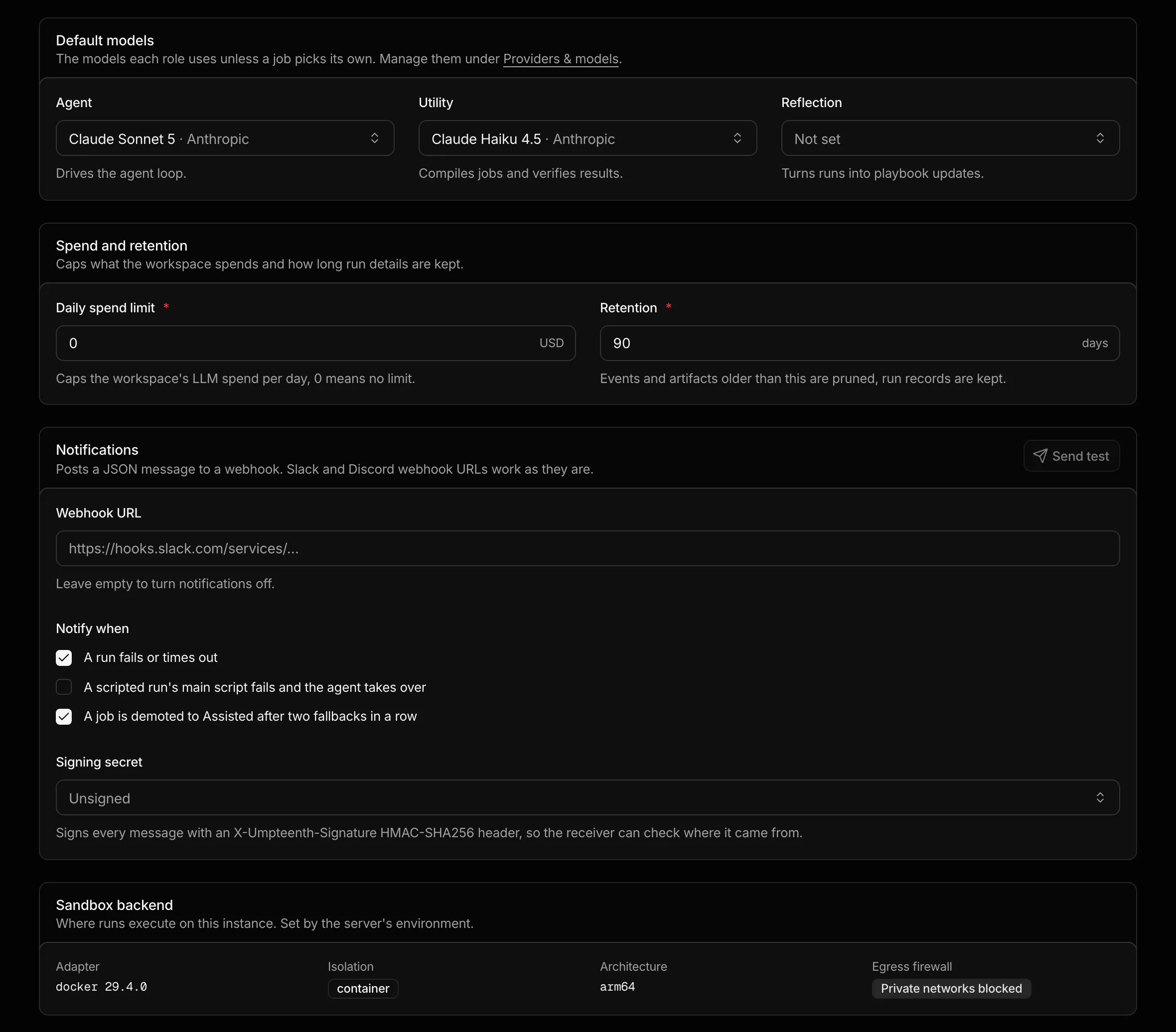
Not enforced comes with the alert Internet sandboxes can reach private networks. Read Security before you give jobs internet access on such an instance.
Podman
Section titled “Podman”Umpteenth talks to Podman through Podman’s Docker-compatible API. Switching the setup above to Podman takes three changes.
-
Start the Podman API socket for your user.
Terminal window systemctl --user enable --now podman.socket -
Build both images from step 1 of the setup with
podman buildin place ofdocker build, so they land in the image store that the socket serves. -
Mount the Podman socket in place of the Docker socket.
docker-compose.yml services:umpteenth:volumes:- ./config.yml:/app/config.yml:ro- ./data:/app/data- /run/user/1000/podman/podman.sock:/var/run/docker.sockReplace
1000with your user ID, whichid -uprints. To mount the socket at a different path, add anenvironment:block to the service that setsDOCKER_HOSTtounix://followed by that path.
Then start the stack with podman compose up -d.
Next steps
Section titled “Next steps”Your instance is ready for your first job. To make it reachable for others over HTTPS, continue with Reverse proxy.