

Managing jobs
Open a saved job from the Jobs list to change its settings or pause it. Starting runs, the sandbox and learning each have a guide of their own: Triggers and schedules, Sandboxes and How jobs learn.
The job page
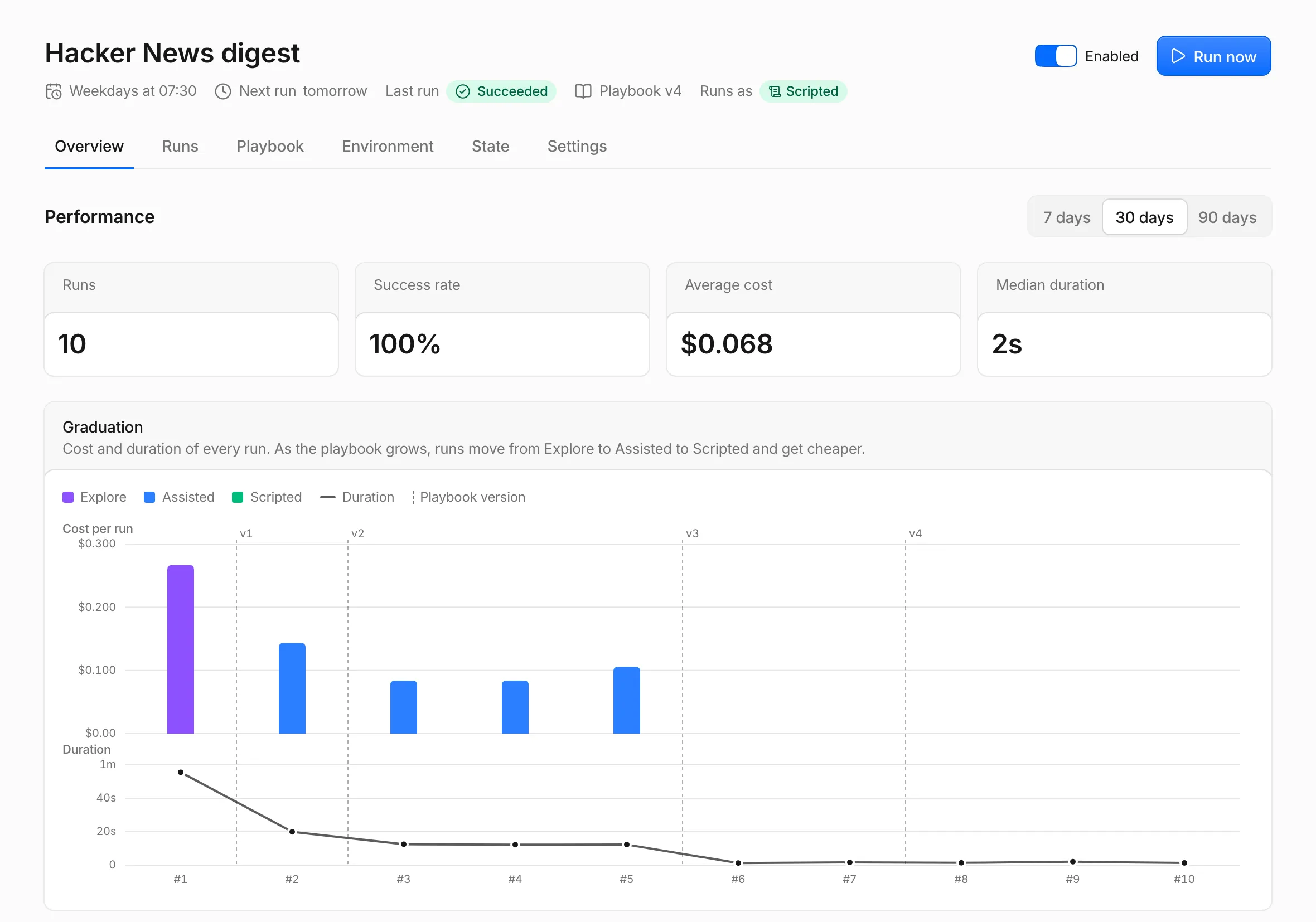
Section titled “The job page”The header shows the schedule in plain words (or On demand), the next run or Paused, the Last run with its status, the playbook version, and the mode the next run starts in: Runs as followed by the mode, or Pinned to when you pinned one. A Demoted badge means the main script fell back to the agent twice in a row, and Learning off means Self-improve is off. The Enabled switch and Run now sit on the right.
The page has six tabs:
- Overview: performance over 7, 30 or 90 days, the Graduation chart, the instruction and the spec.
- Runs: this job’s runs, in the same table as the Runs page (Reading a run).
- Playbook: the learnings, toolkit scripts and main script the job built up, with every earlier version (How jobs learn).
- Environment: the job’s Dockerfile and its image builds (Sandboxes).
- State: the values runs keep between runs (Job state).
- Settings: everything you can change, in the cards General, Schedule, Sandbox, Learning, MCP servers, Secrets, Webhook and Delete job.
Overview opens with four numbers for the period: Runs, Success rate, Average cost and Median duration. Below them, the Graduation chart shows each run’s cost as a bar colored by mode, its duration as a line, and each new playbook version as a marker. Click a bar to open that run.
Editing a job
Section titled “Editing a job”Your changes on the Settings tab wait in the Unsaved changes bar until you click Save or Discard. They take effect for runs that start after you save.
In the General card you edit the name, the instruction and the model.
Umpteenth never compiles the instruction again, so the spec keeps what you saved on the review screen: goal, success criteria, inputs, outputs, services and side effects.
The Spec card on Overview shows them read-only, and PATCH /api/jobs/<job ID> with a spec field is the only way to change them (REST API).
If a job’s purpose changes, create a new job so the spec matches the new text.
Writing instructions lists what the compile step pulls from a description.
A graduated job runs its main script, which doesn’t read the instruction. After an edit that changes what the job does, update the main script with Edit main on the Playbook tab, or set Mode to Assisted until you have.
The network settings in the Sandbox card, the Secrets card and the Environment tab have their own guide, Sandboxes. The MCP servers card and its tool allow-list are part of MCP servers, and the Webhook card is part of Triggers and schedules. Job settings lists every field with its default and allowed values.
The model
Section titled “The model”Model sets the model that drives the agent for this job. The first option, Workspace default, names the Agent model under Settings → General → Default models and follows later changes to it. Only enabled models appear in the list.
If you disable the job’s model later, or its provider stops listing it, runs fall back to the workspace default. A job with neither its own model nor a default fails every run with “No model is configured. Pick a model for the job or set a default agent model in Settings.” Providers, prices and the other model roles have their own page, Models and costs.
Limits per run
Section titled “Limits per run”Every run has a time, a turn and a cost limit, and its sandbox gets a fixed share of CPU, memory and processes. You set them per job in the Sandbox card, where an empty field uses the workspace default shown as its placeholder and follows later changes to it. The workspace defaults live under Settings → General → Sandbox defaults.
| Setting | Default | A run that reaches it |
|---|---|---|
| Timeout | 900 seconds | ends as Timed out. Waiting for the job’s image build counts toward it, time in the queue doesn’t |
| Max turns | 60 | ends as Failed with “the run exceeded its limit of 60 turns”. A turn is one model call |
| Max cost per run | 2 USD | ends as Failed with “the run exceeded its cost limit of $2.00”. 0 turns this limit off |
| CPUs | 1 | runs slower: Docker throttles the sandbox to that many CPUs |
| Memory | 1024 MB | loses the command that ran out: the kernel kills it, and the agent sees why in the command’s result. The sandbox has no swap |
| Process limit | 256 | can’t start more processes |
Umpteenth checks the turn and cost limits before each model call, so the last call can take a run past its cost limit.
Models and costs covers what the cost limit counts, including ump llm calls and models without prices, and the workspace’s Daily spend limit.
Pausing a job
Section titled “Pausing a job”You pause a job with its Enabled switch, in the job header, in the Schedule card or in the Jobs list.
Turn it off and the job keeps its schedule and webhook, but neither starts runs: Umpteenth records nothing for a scheduled occurrence, and the webhook answers skipped.
Run now, the API and Retry keep working, so you can test a paused job by hand.
The header shows Paused where the next run was, and you can filter the Jobs list down to Paused jobs. Turn the switch back on and the schedule picks up at the next occurrence from that moment. Occurrences that fell into the pause don’t catch up.
Mode and learning
Section titled “Mode and learning”The Learning card holds two settings, Self-improve and Mode.
Self-improve is on for new jobs: after runs, reflection turns what worked into new playbook versions (How jobs learn). Turn it off to stop reflection after runs, along with what it spends, and the header shows Learning off. The playbook then changes only through your edits and Learn from this run, which works with the switch off too.
Mode sets the mode runs start in:
- Automatic, the default, starts a job in Explore (the agent on its own), moves it to Assisted once the playbook holds learnings or toolkit scripts (the agent with the playbook), and to Scripted once it graduates (the main script, with the agent as fallback).
- Explore makes every run an Explore run, and Explore runs never count toward graduation. Despite the option’s description (“from scratch”), these runs get the playbook’s learnings and toolkit.
- Assisted keeps the agent in charge with the playbook, even after the job graduated. A job that hasn’t learned anything yet starts in Explore regardless.
- Scripted runs the main script even while the job is demoted. Without a main script, runs start in Assisted or Explore.
See How jobs learn for graduation, fallback and demotion.
Job state
Section titled “Job state”Job state is a set of key-value strings that a job keeps between runs, such as the last item it reported.
The agent reads and writes it with its own tools, and scripts use ump state (ump CLI).
The State tab lists every entry with its value and last update.
On the tab you add a key with Add entry, and edit or delete one with the buttons on its row. Runs can’t delete keys, so this tab and the API are the only places to remove one. Deleting the key a watcher compares against, for example, makes its next run behave like its first.
A key holds up to 200 characters and a value up to 1 MiB, and a job keeps at most 1,000 keys with 16 MiB of keys and values in total. Writes past either limit fail, from a run or on this tab, until you delete keys the job no longer needs. Writes take effect at once, and all runs of a job share one state, so runs in Parallel can overwrite each other’s values.
Deleting a job
Section titled “Deleting a job”Delete job at the bottom of the Settings tab removes the job from every list and stops its schedule and its webhook, which answers 401 from then on.
Umpteenth cancels the job’s queued runs and lets active runs finish.
Past runs stay under Runs with their outputs.
There is no undo, so pause a job you might want back.